Shopify Mockup Generator: How to Push Bulk-Generated Listing Photos Directly to Your Shopify Store Without Manual Uploads
If you sell wall art, apparel, or any print-on-demand product on Shopify, you already know the bottleneck. The design is done. The product is live. But the listing photos are still sitting in a folder on your desktop, waiting for you to open each product page, click the image section, drag the right file in, and repeat that for every single variant. A proper Shopify mockup generator does not just render the photos. It removes that entire upload step from your workflow.
This post covers how Mockupanda works as a Shopify mockup generator, from uploading your artwork to pushing a full set of listing photos directly to your store in one action. No manual uploads, no file management, no juggling ZIP folders between tabs.
Why Manual Uploads Kill Your Catalog Momentum
The real cost is not the time per listing
When you calculate how long it takes to upload mockups manually, the number sounds manageable. Maybe three minutes per product. But three minutes per product across a catalog of two hundred listings is ten hours of pure, mindless clicking. And that is before you account for the mistakes: uploading the wrong file to the wrong product, missing a template entirely, or discovering two weeks later that one product page still has a placeholder image.
The problem is not just speed. It is consistency. When every listing in your shop should follow the same visual style and you are uploading files one at a time, you will eventually break the pattern. One product gets five mockups, the next gets three, another gets them in the wrong order. Shoppers notice inconsistency even when they cannot name what feels off.
Mockup generation and delivery are two separate problems
Most tools solve generation but leave delivery to you. They render your mockups, give you a ZIP, and that is where the workflow ends. The ZIP is better than nothing, but it still puts the upload burden on your shoulders. A Shopify mockup generator that actually connects to Shopify closes the loop. You render, you push, you move on.
Takeaway: Before you evaluate any mockup tool, ask not just how it creates photos but how it gets those photos into your store. A broken handoff wastes whatever speed you gained in generation.
How Mockupanda Works as a Shopify Mockup Generator
Upload once, apply everywhere
Mockupanda is built around the principle of uploading a design once and using it across every template that fits. You drag and drop your file, PNG, JPG, or WebP, and the editor places it into the template with perspective mapping, scene lighting and shadows, and fabric folds already baked in. These are rendered listing photos, not flat overlays.
From there, the three-step flow for Shopify sellers is straightforward. First, upload your design. Second, browse room settings and frame styles and pick the templates that match your store's aesthetic. Third, download your high-resolution mockups and add them to your Shopify product listing. That third step is where the direct push option changes everything.
Bulk generation renders every combination at once
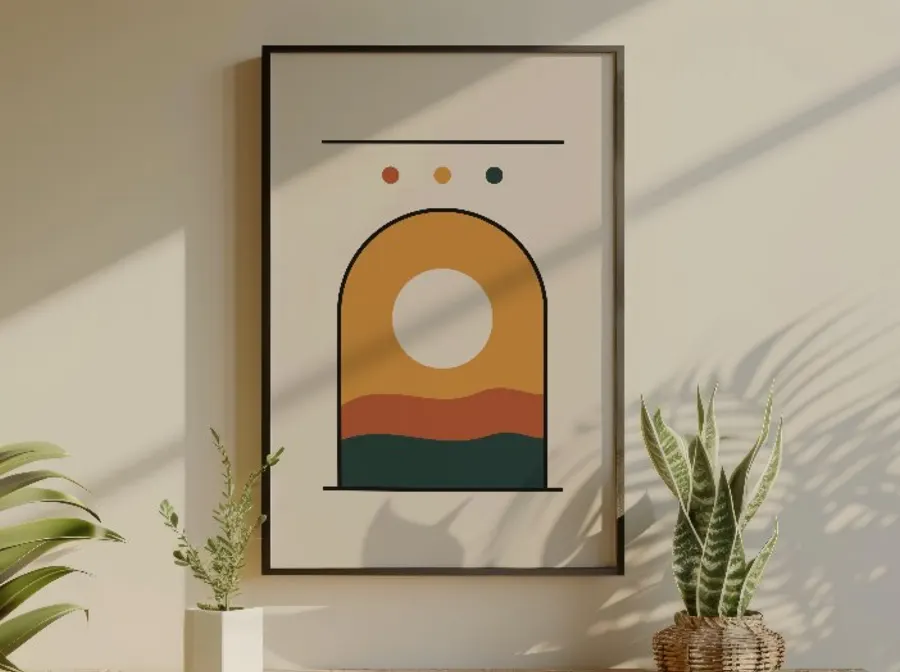
The bulk mockup feature is what makes this practical at catalog scale. You upload your designs, pick your templates, and every design and template combination renders at once from your exact files. If you have three designs and six templates, that is eighteen listing photos produced in a single batch, not eighteen separate editing sessions.
Once the batch is done, you have two options: download everything as one ZIP, or push straight to Shopify. The ZIP option is useful when you want to review files first or when you are uploading to a platform other than Shopify. The direct push is what you want when your Shopify catalog is the destination and speed is the priority.
This is the feature that earns the label of a true Shopify mockup generator. The rendering and the delivery happen in the same tool, in the same session.
Takeaway: Run your first bulk batch with three to five designs and your core set of templates. Watch how long the batch takes versus how long your previous per-mockup workflow took. That gap tells you exactly how much time you reclaim per new product launch.
Setting Up Templates and Sets for Shopify Consistency
Print ratio filtering keeps your frames clean
One of the quiet problems with scaling a Shopify catalog is that your art files come in different proportions. A square print does not belong in a 2:3 frame and a 3:4 file will look cropped in a square template. Mockupanda assigns a print ratio to every template in the library. A series, 3:4, 2:3, 4:5, Square, and 4:3 are all supported. When you filter by ratio, you see only the templates where your design fills the frame edge to edge, nothing cropped or stretched. If a design does not match a template, the editor flags it so you catch the problem before you render.
For a Shopify store where you are running bulk batches across dozens of designs, this filter is not optional. Without it, you will find proportion mismatches in your rendered output and have to re-render, which costs time and, depending on your plan, re-renders you did not need to do.
Sets let you standardize your store look
Sets are named, ordered groups of templates. You create a set once under Sets in the app, and from then on you reference that set instead of selecting templates individually every time you run a batch. If every listing in your shop reuses the same mockup styles, a set lets you lock that in and never think about template selection again.
Sets can mix library templates with your own custom templates, including any My Templates you have saved. So if you have branded your own template with your shop's logo and fonts using the built-in text and graphics tools, that template can live inside the same set as library templates. Everything renders together as one consistent batch.
For Shopify sellers who want every product page to look like it belongs to the same brand, sets are how you enforce that standard without manually re-selecting templates for each session.
Takeaway: Build one set that represents your Shopify store's visual standard. Give it a name that reflects the product category, wall art, tees, totes, or whatever fits. Every future batch for that category uses that set, so consistency becomes automatic rather than intentional.
The Bulk Mockup Workflow From Design to Shopify
What the batch process looks like in practice
The workflow starts with your finished artwork. Mockupanda is not a design suite, it expects you to arrive with completed files. JPEG, PNG, GIF, and WebP are all supported, and transparent PNGs work correctly.
You upload your designs, select your templates or point to a saved set, and the bulk engine renders every combination. The output is JPEG at around 90% quality, cleared for commercial use, and no attribution is required.
For sellers also listing on Etsy or managing catalogs across platforms, the ZIP download gives you everything in one archive. If you have handled a batch upload workflow for Etsy listings before, you already know how to organize those files. For Shopify specifically, the direct push skips the ZIP step entirely.
What the Shopify push actually does for your time
Consider the alternative. You finish a bulk render, download a ZIP with thirty mockups in it, extract the files, open Shopify, navigate to each product, find the media section, drag the right files in, check that the order is correct, and save. Multiply that by every product in the batch.
The push-to-Shopify option takes that entire sequence and replaces it with one action after your batch renders. This is what bulk mockup generation is built to unlock: the ability to scale your catalog without scaling the number of hours you spend on listing photos.
Takeaway: Time your next manual upload session for one product, start to finish. That number is what you save per product when you switch to a direct push workflow. Multiply it by your catalog size and you have a clear picture of the total time the integration returns to you.
Plans, Pricing, and What You Get at Each Level
Free plan limits and what they cover
The Free plan lets you access every template in the library and render unlimited mockups. The first 20 downloads come without a watermark, so you can produce a small initial set of Shopify listing photos before paying anything. You also get five AI credits per month to generate or customize scenes. The design library on the Free plan holds the ten newest designs.
For someone just starting a Shopify store with a small catalog, the Free plan is a reasonable way to test the workflow before committing to a paid tier.
Paid plans for active Shopify sellers
The Starter plan gives you 700 downloads per month and 40 AI credits. The Pro plan removes the download cap entirely, adds 100 AI credits, enables layered PSD downloads, and includes priority support. If you are running a Shopify store with an active catalog and launching new products regularly, the unlimited downloads on Pro mean the monthly render volume never becomes a constraint.
There is also a Lifetime plan at a one-time payment of $129, which includes 300 AI credits total and a design library that holds up to 1,000 designs. For sellers who want to pay once and use the tool indefinitely without tracking a subscription, the Lifetime plan fits.
For developers building Shopify integrations or automating their own tools, the API prices mockups at $0.01 per render, credits never expire, and there is no subscription required. You top up credits starting at $5 and render programmatically using the REST API.
Takeaway: If you are evaluating paid plans, compare your average monthly download volume against the Starter cap. If you regularly launch products in batches larger than 700 mockups per month, Pro's unlimited downloads make more sense than tracking your usage ceiling.
Developers: Embedding Shopify Mockup Generation via API
What the API exposes for Shopify integrations
If you are building a Shopify app, automating your own store's fulfillment pipeline, or managing a large catalog programmatically, the Mockupanda API gives you direct access to the same rendering engine the web app uses. The core endpoint is POST /api/v1/mockups/generate. You send your artwork URL, your template IDs or a set_id, and optionally a product_color for apparel. The API renders up to 12 templates per request and returns the results in a JSON response.
Render times run between one and five seconds per request. The maximum output width is 4000px, with a default of 2000px. JPEG output defaults to 85% quality. Failed requests cost zero credits, so you are not billed for errors. There are no webhooks, so your integration should poll or handle the synchronous response directly.
The /sets endpoint lets you retrieve the sets you have configured in the app and use them in API calls. This is the same Sets feature described above, but accessed programmatically. If you have a standard mockup set for your Shopify wall art products and another for apparel, each has a set_id you can pass in a single API call instead of listing template IDs every time.
Hybrid search and batch mode for catalog-scale rendering
The API supports a hybrid search parameter q that lets you find templates by description, along with ratio and artwork-shape matching, so you can filter to the right templates programmatically without hardcoding every template ID. Batch mode is also available for rendering at catalog scale.
For multi-frame artwork like diptychs and triptychs, the API accepts the multi-frame format directly. If your Shopify store sells split-panel prints, the rendering handles the multi-panel layout as part of the same request.
At $0.01 per mockup and credits that never expire, the API cost scales linearly with your volume and nothing else. There is no subscription to maintain, no monthly floor, and no volume discount either. You pay for what you render.
Takeaway: If you manage more than a few hundred Shopify products and you want mockup rendering wired into your own tooling rather than a manual session in the web app, the API is the right path. Start by pulling your set IDs from the /sets endpoint and test a batch render against a small product group before connecting it to your live catalog pipeline.
Making the Shift to a Connected Shopify Workflow
The phrase Shopify mockup generator covers a lot of ground. At minimum it means a tool that renders product photos you can eventually get onto Shopify. At its most useful it means a tool where the rendering and the delivery are part of the same action, and where you can standardize your visual templates so every product page you publish looks like it belongs to the same store.
Mockupanda covers both ends. The web app gives you a live editor for precise placement, bulk generation for entire collections, and a direct push to Shopify that removes the upload step. The API gives developers the same rendering engine with programmatic control over templates, sets, colors, and batch sizing.
If you have been treating mockup creation as something you do one at a time, the bulk workflow approach changes the math on how many products you can realistically launch in a week. When the photos go straight to Shopify after rendering, the catalog work that used to take an afternoon takes a fraction of that.
Start with a free account, run a batch with your current designs, and use the Shopify push to see the full loop in action before you decide on a plan.
Keep reading
How to Build a Gallery Wall Mockup That Sells a Diptych or Triptych Set as a Bundle on Etsy
How to Upload a Custom PSD Template to a Mockup Generator So Your Brand's Unique Scenes Render Consistently at Scale